
Explore five updates for researching companies and social content, reusing templates, reviewing email, and managing your work in Okou. Plus, take a break with our Halloween quiz.
More advanced capabilities, built in
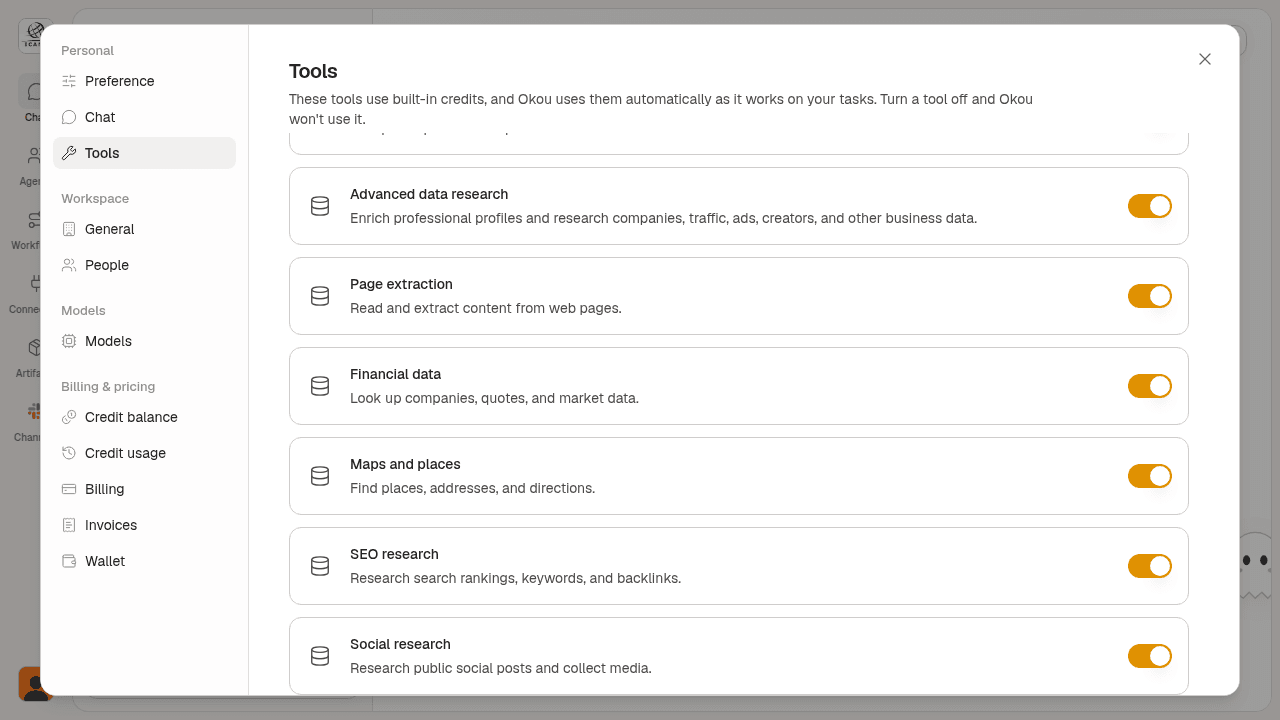
Okou supports a wider range of advanced capabilities right in chat. Find companies by name, location, team size, or keyword; look up company profiles; and research professionals by role and employer.
Public social research covers X, Instagram, TikTok, YouTube, Facebook, Threads, Xiaohongshu, WeChat Official Accounts, Douyin, and Weibo. For example, ask: “Find five public Weibo posts about coffee and summarize the themes.”
No extra accounts or API keys are required. Manage these capabilities in Settings → Tools, under Advanced data research and Social research. Data requests use your Okou credits.
Bring your own templates
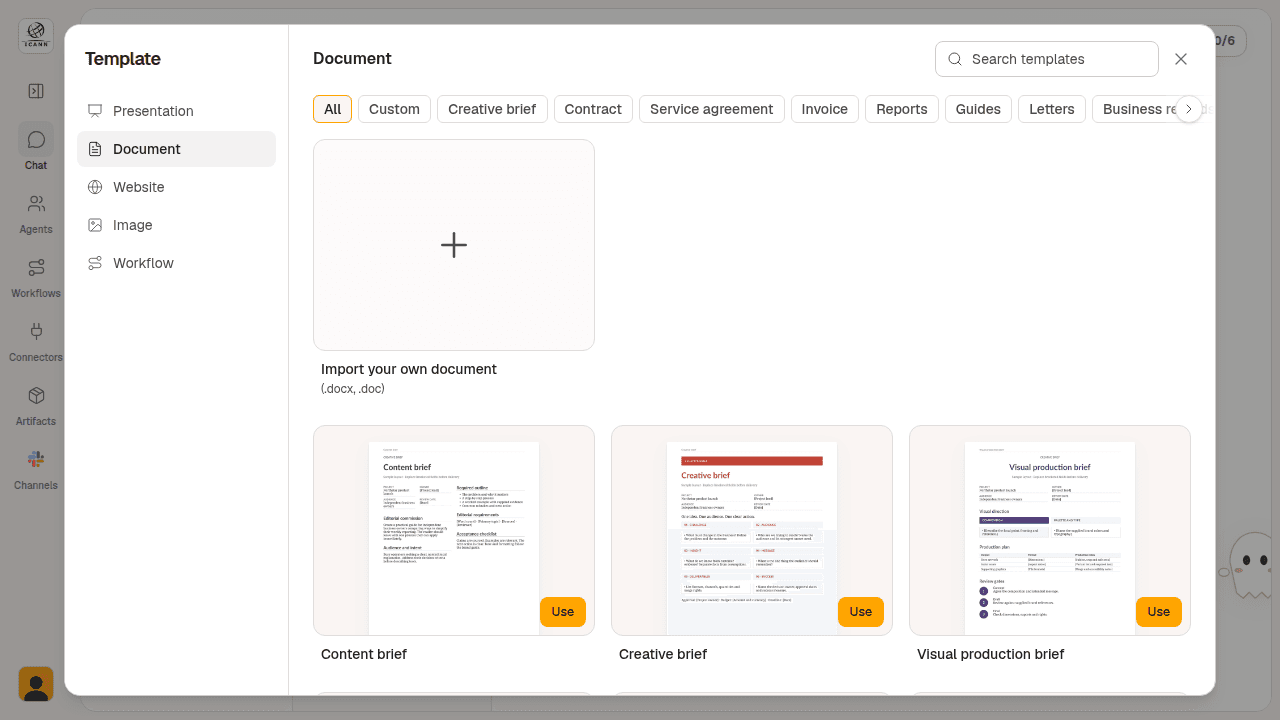
Bring the formats you already use into Okou. The template picker now separates your custom templates from the built-in collection, with dedicated spaces for presentations, documents, and images.
To add a document template, choose Document from the chat starter tasks, open Custom, and import a .doc or .docx file. Your own formats stay close at hand when you start the next piece of work.
A chat email manager
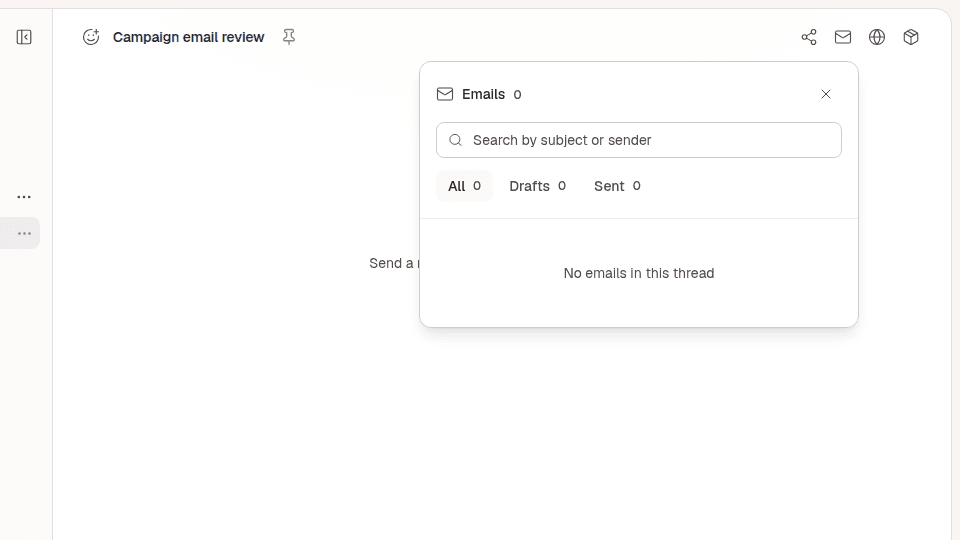
Keep track of the emails associated with a conversation without scrolling back through every message. The chat email manager brings those drafts and sent messages into one panel.
When a chat has linked emails, open Manage emails in the chat header. Search by subject or sender, filter by Drafts or Sent, and open an email to review it. The screenshot shows the empty state in a fresh demonstration chat.
Reorder pinned chats with the keyboard
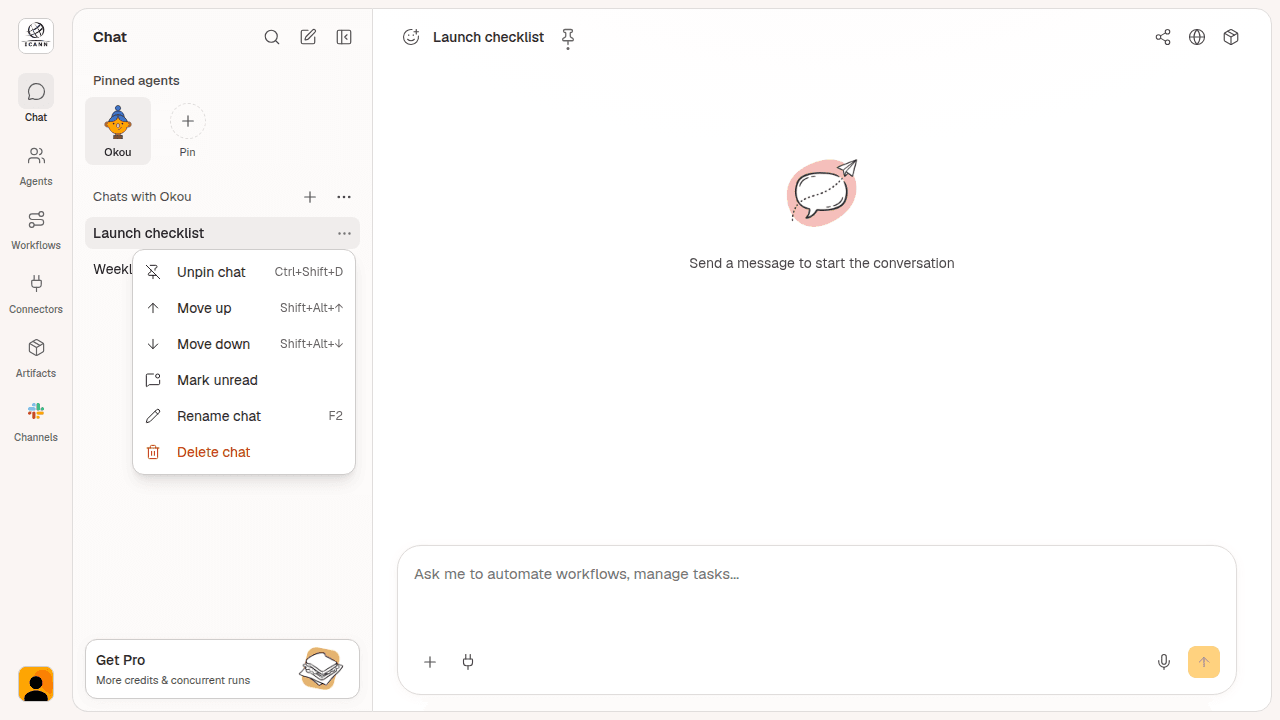
Keep your most important conversations in the order you need. Use Alt/Option + Shift + Up or Down to move a pinned chat one position at a time.
The shortcut keeps the current conversation selected. You can also use Move up and Move down in the chat menu, where the keyboard shortcuts are shown beside each action.
Remote control guided setup
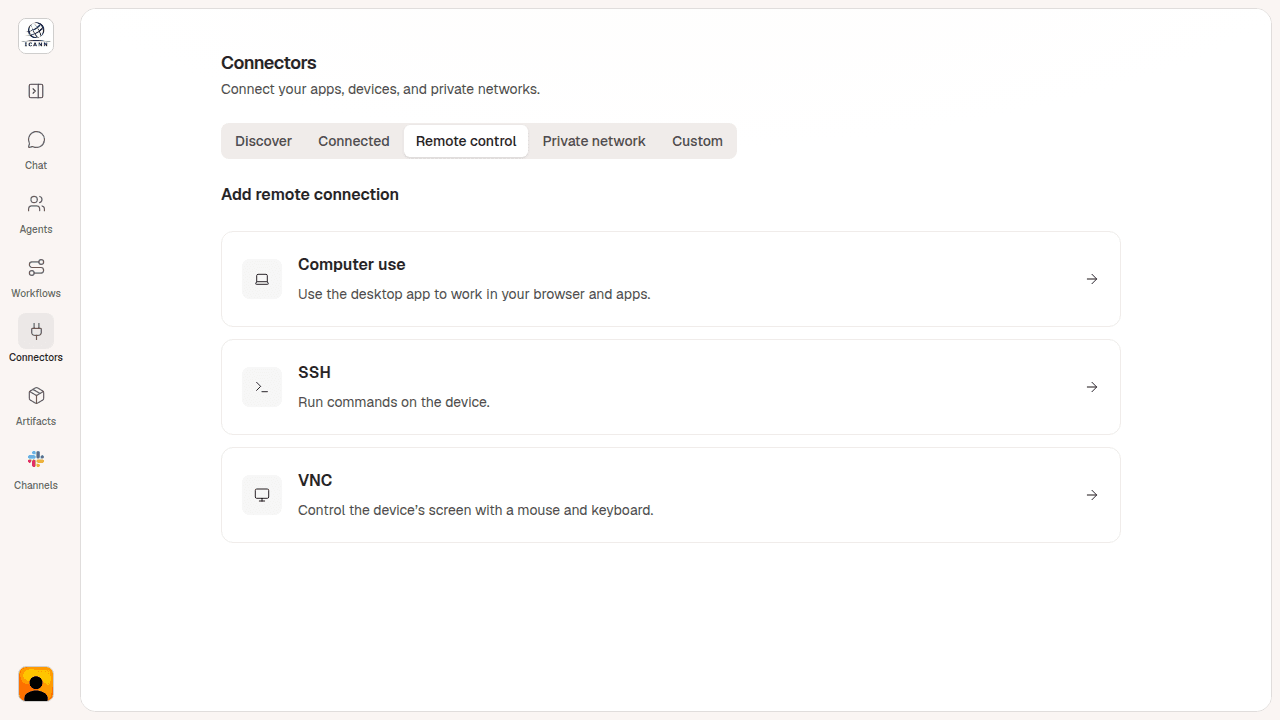
Set up a remote connection from one guided starting point. In Connectors, open Remote control and choose Computer use, SSH, or VNC. The next steps follow the connection method you selected.
For machines on a private network, you can also configure a Tailscale connection. The setup flow helps you prepare access before asking Okou to work on the remote machine.
Halloween special: a treat from Okou
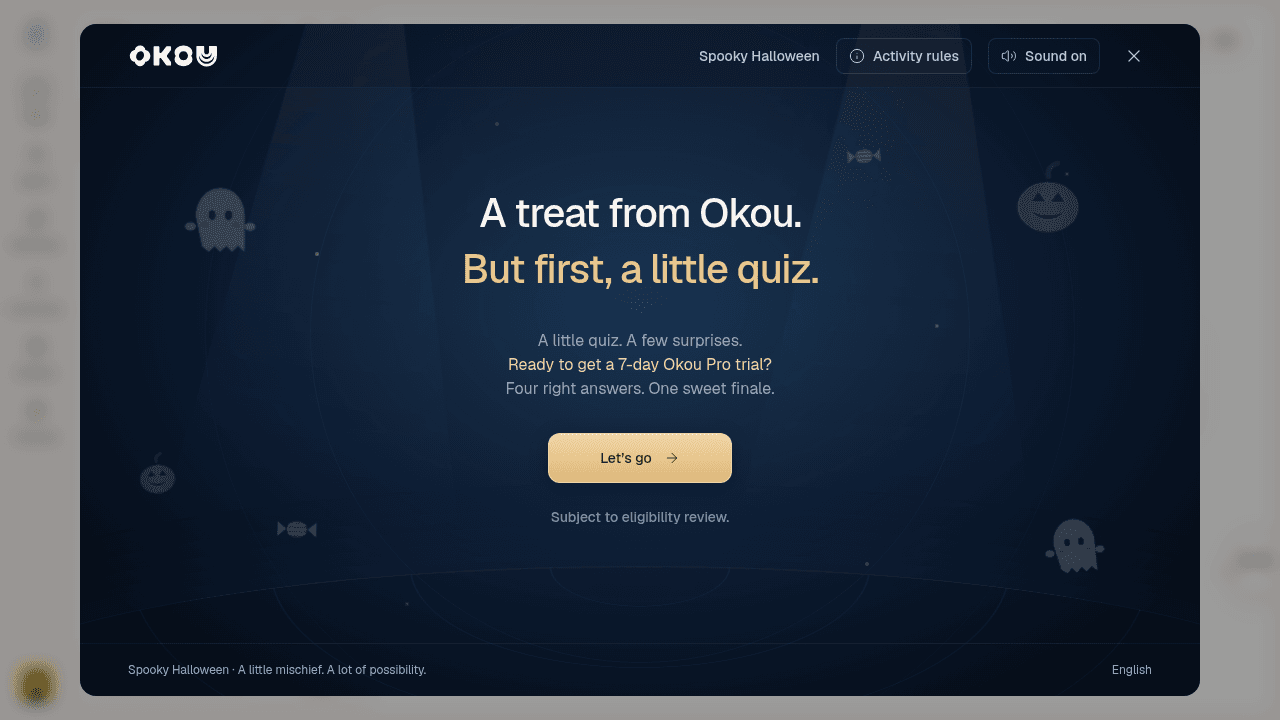
Take a quick Halloween quiz and put your Okou knowledge to the test. Your progress is saved to your account, so you can leave and come back.
Selected participants receive seven days of Okou Pro. Already on Pro? Your access is extended by seven days if you are selected. Rewards are subject to eligibility review and do not include credits. Sign in to play and open Activity rules in the quiz for the full details.
Open Okou to try these updates. Thanks for building with us.


